Understand an Overwatch area
Monitoring of an Area of Interest (AoI) is necessary to understand the hidden activity happening around critical infrastructure, ports, areas or economic zones where you have a particular interest in keeping control. Overwatch will help uncover unreported vessel activity within that area. Over time, Overwatch can give you a better understanding of heat spots for this hidden activity, whether it is unreported fishing, transshipments or spoofing.
The data presented to the user is all detected instances of vessels observed in a satellite image correlated with all AIS signals for the area. Three data types are made available for the users' inspection by fusing the data sources. Insights are classified into various categories:
- Verified AIS positions (detections of vessels in a satellite image with a corresponding AIS message).
- Dark vessels (detection of vessels in a satellite image without a corresponding AIS message).
- Uncorrelated AIS messages (AIS positions without corresponding vessel detection in a satellite image).
- Static objects (such as wind turbines and platforms).
The conceptual representation of the classes and how they relate are seen in the figure below.
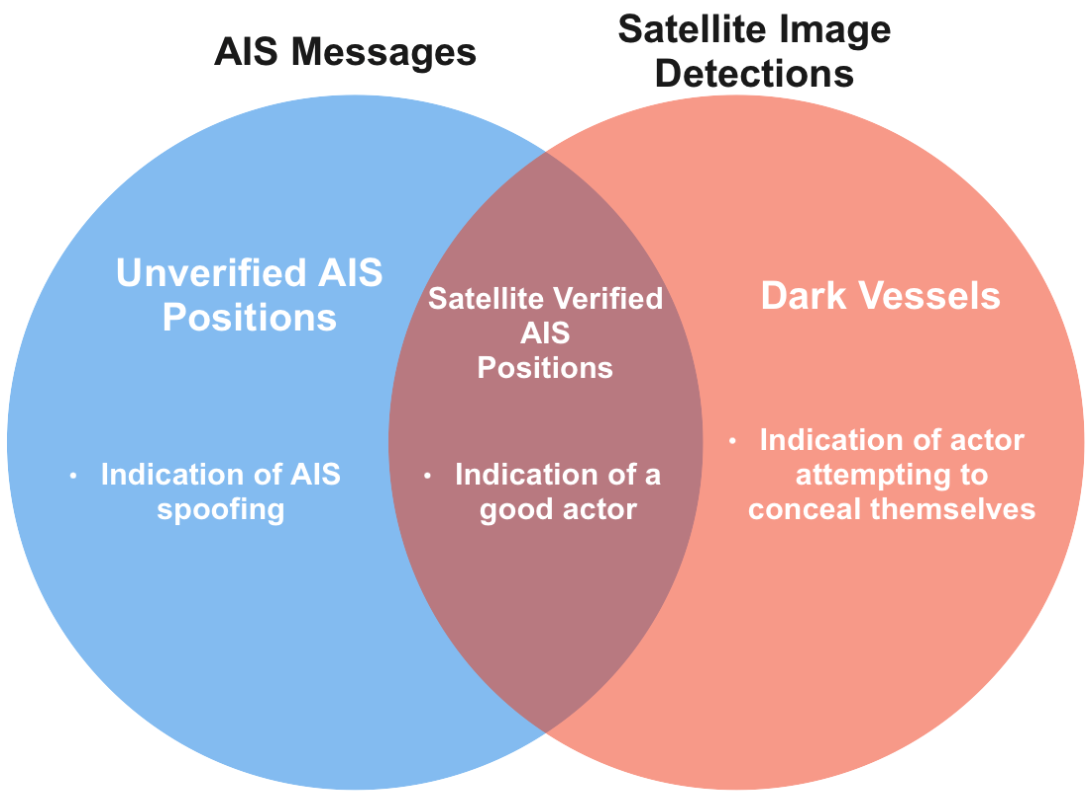
Figure 1: Conceptual drawing of insight classes used in Overwatch and Pathfinder.
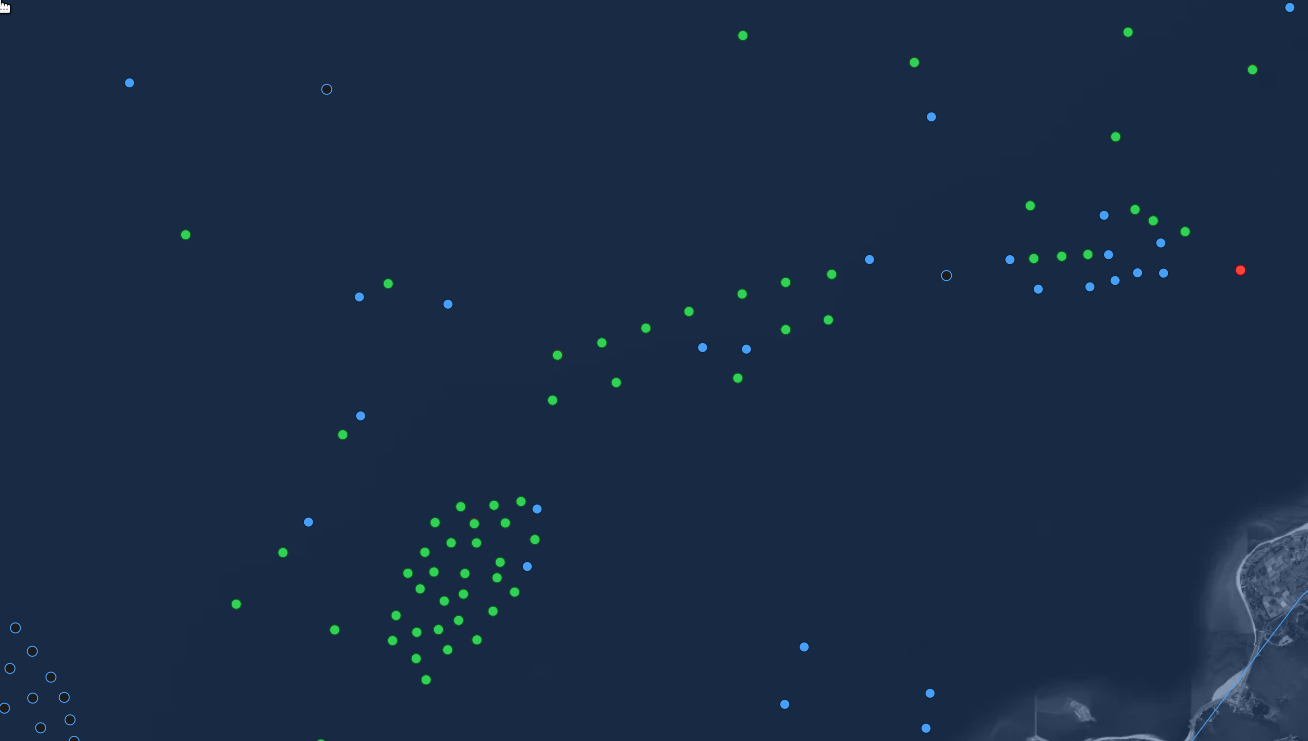
Figure 2: Demonstration view of an Overwatch report for an area. Insights are seen as circles on the map whose colour indicates the categories described above. Green circles are verified AIS positions, meaning they are correlated with detections in satellite imagery. Red circles are dark vessels, meaning detections of vessels in satellite imagery that have not been matched with a corresponding AIS message. Blue circles are uncorrelated AIS messages, meaning AIS messages that have no corresponding satellite image detection. Static objects (wind turbines, platforms, etc.) are seen as black circles with blue edges.
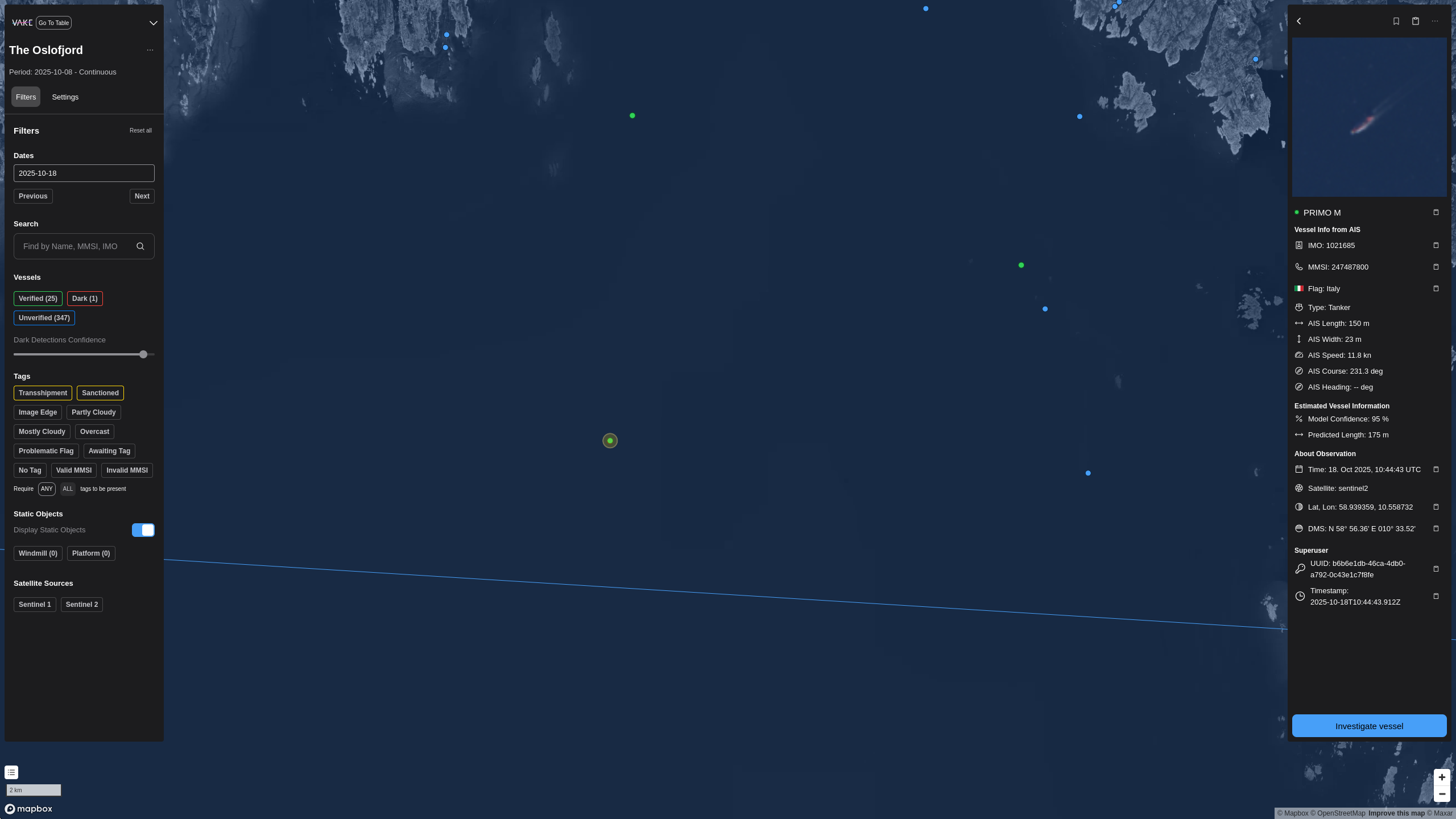
Figure 3: Verified AIS position with satellite imagery detection in an Overwatch report.
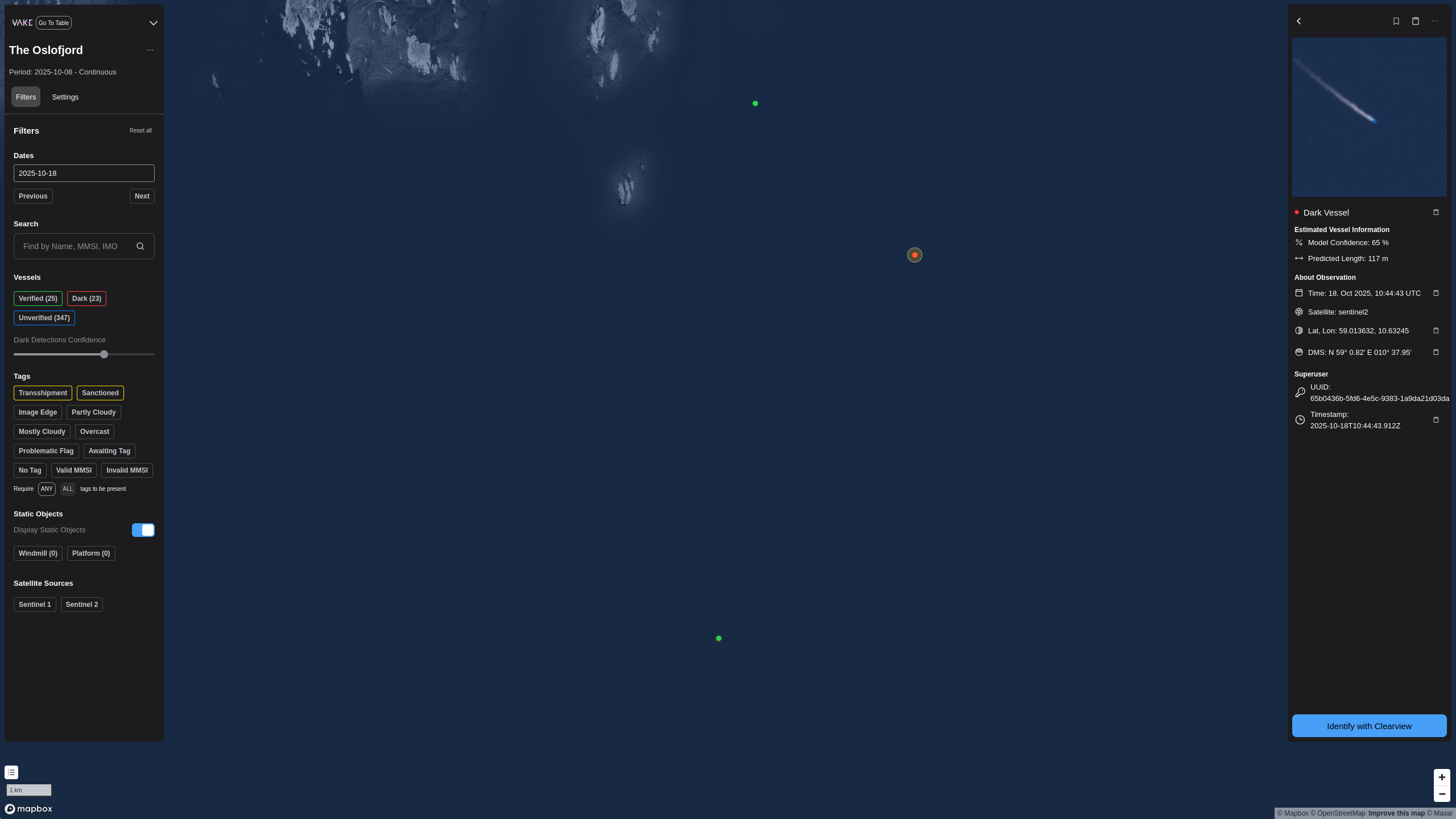
Figure 4: Dark vessel with no corresponding AIS message
Filter Menu
The Filter Menu gives context to the subscription. In the top you find information about the subscription name and duration. Below are the filters, where you can adjust what you see. Currently, we have filters on date, verfied, dark and unverified vessel positions, a dark detection confidence slider, meta-tags on the insights themselves, static objects and data sources.
Date Picker
Use the date picker for chosing your desired date. By default, you are given the latest date for your subscription.
Dark Detection Confidence Slider
Below the date picker, you are able to adjust the model confidence. In some areas, at some times, there are a lot of white caps (waves) that the model might interpret as small vessels. In such instances, the model confidence slider lets you demand a higher confidence before reporting dark vessels.
Legend
Located in the bottom-left corner just above the scale indicator, is the map legend. Clicking on the map legend expands it to show the different elements on the page. Check the tooltips marked by a question mark in the legend for more information.
Dynamic menu
The dynamic menu is located at the right hand side, and displays all events for the area of interest, for the day you have selected.
Hovering the images in the dynamic menu makes the event in interest to be marked in the map. This makes it easy to connect the dynamic menu to the map.
By clicking either on an event in the menu, or by clicking on an event marked in the map, the dynamic menu changes to event-view, and gives you more information about this specific event, and relevant action(s) to this event.
Map
The map is the core visual navigation element in the report.
Navigating the map works in the same way as you are familiar with from other big maps-products
- Move around the map: Left-click and drag to navigate in the map.
- Zoom in or out of the map: Press the Plus (+) or Minus (-) keys in the bottom right corner. Tip: Hold command (Mac) / Ctrl (Windows) and use the scrollwheel on your mouse to zoom to the exact level you prefer.
- Tilt (3D mode): Right-click and drag to adjust tilt of the map.